Normal Map Generator
Turn any photo or texture into a normal map in seconds. AI reads the real surface, so shadows stay shadows. Check every bump under a moving light, then export normal, height, roughness and AO maps for Blender, Unity and Unreal.

Detail, roughness, AO and single-map downloads
Bump detail
Roughness and AO
Download one map
AI photo mode: shape read from the photo, shadows stay shadowsRuns in your browser. Images never leave your device.
Normal Map Examples from Real Photos
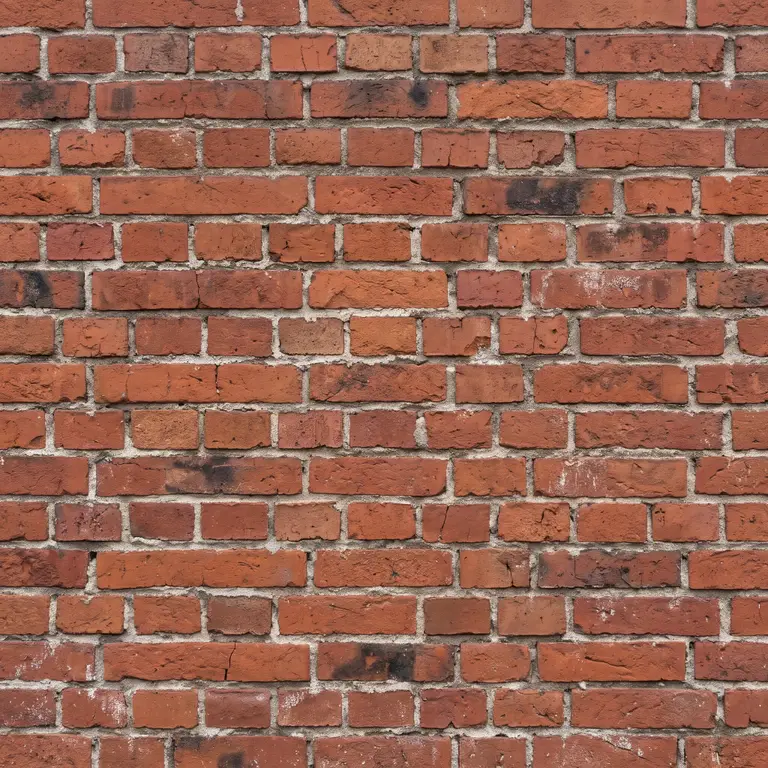
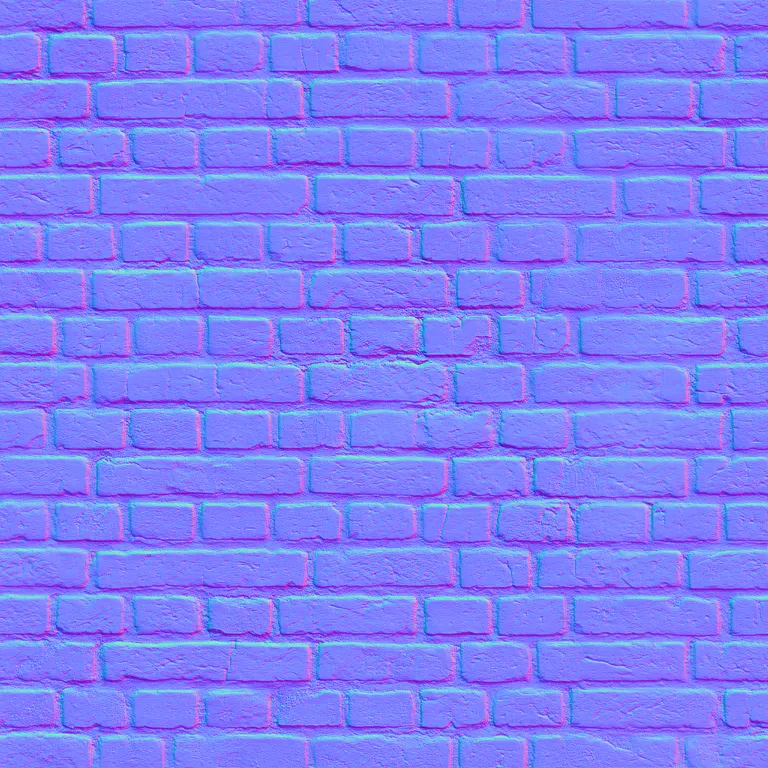
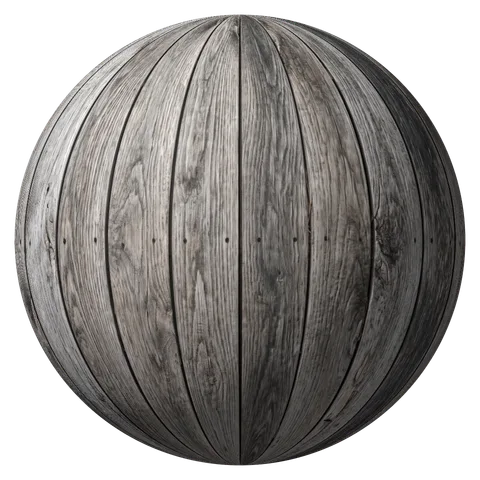
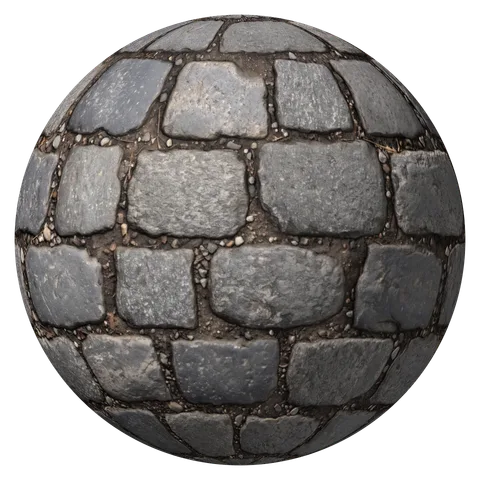
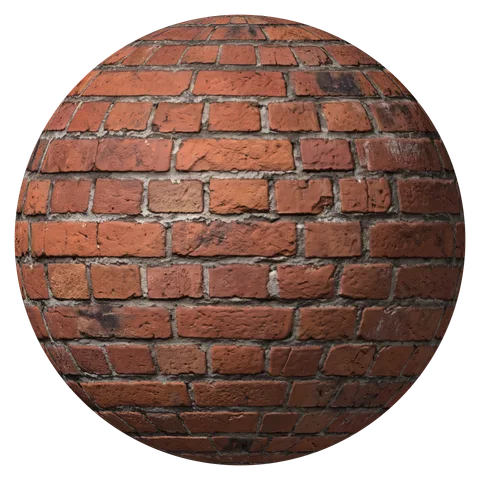
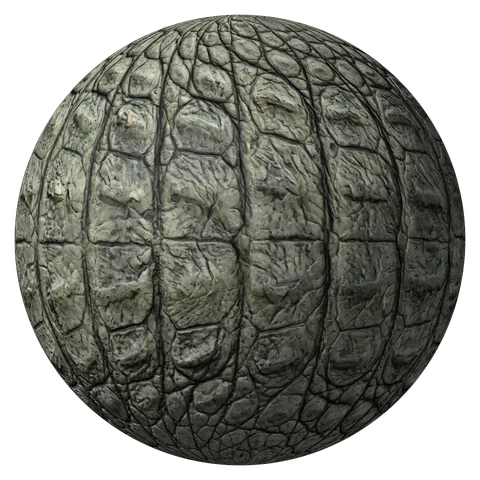
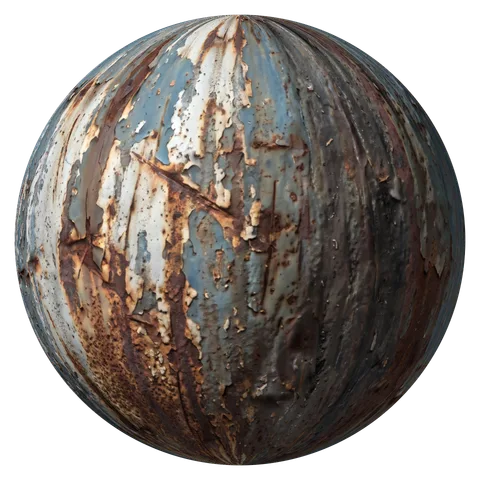
Eight surfaces shot straight on and run through the normal map generator in AI photo mode with default settings. Hover a ball to see its normal map, click to open it in the generator and change any setting.
AI Normal Map Generator vs Brightness as Height
Most normal map tools treat bright pixels as high. On this brick wall the pale mortar comes out raised and the bricks stay flat. AI photo mode reads the shape instead: the bricks stand out, the mortar sinks in and the dark stains stay flat.
 Brightness as heightAI photo mode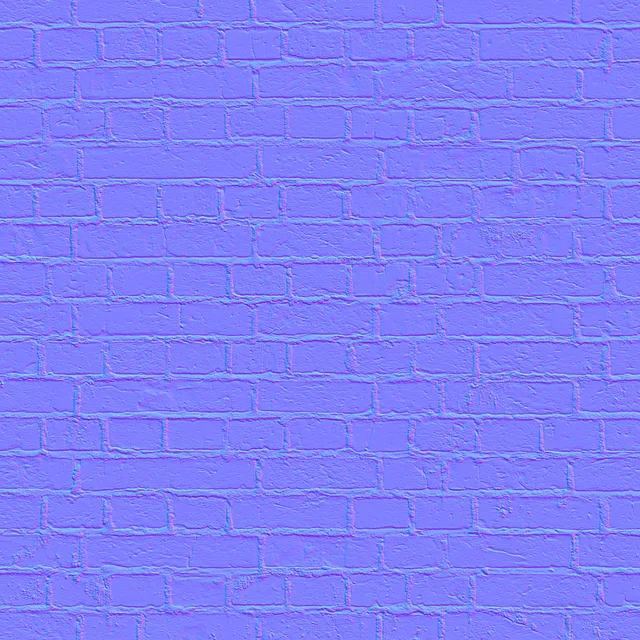
What Is a Normal Map?
A normal map is an RGB image that stores which way the surface faces at every pixel. Red is the X direction (left to right), green is Y (bottom to top) and blue is Z (straight out of the surface). A flat pixel is 128, 128, 255: the light purple blue that every normal map is mostly made of.
A game engine or renderer reads those directions and lights a flat polygon as if it had bricks, cracks and grooves. You get the look of millions of polygons on a low poly model, which is why every game asset and PBR material ships with a normal map. A normal map generator makes one from a photo or a height map, so you skip sculpting and baking.
| Map | What it stores | Moves the mesh? | Best for |
|---|---|---|---|
| Normal map | Surface direction per pixel, as RGB | No, only the lighting | Game engines and real-time detail |
| Bump map | Height as grayscale, turned into shading at render time | No | Quick detail in offline renders |
| Height map | Height as grayscale, white is high | Only as an input | Parallax, displacement and terrain |
| Displacement map | Height that moves the vertices | Yes | Close-ups that need a real silhouette |
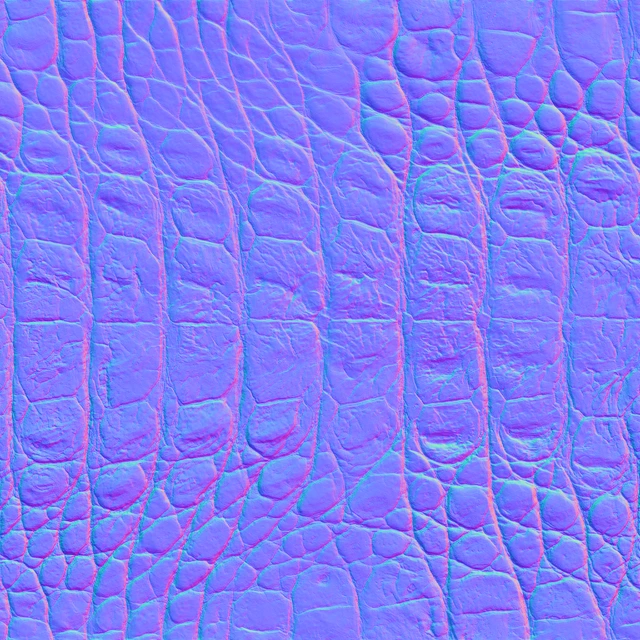
Move over the normal map (or tap it) to read the direction of any pixel.
How to Make a Normal Map from an Image
Image to normal map in four steps, from a photo on your phone to a material in your engine. The normal map generator already shows a brick wall, so you can try every setting before you upload anything.
- 1
Upload, paste or take a photo
Drop a PNG, JPG or WebP, paste one with Ctrl+V, or tap Take photo on your phone. Several files at once make a batch you download as one ZIP.
- 2
Pick AI photo mode or image mode
AI photo mode is for real photos: it reads the shape and ignores shadows and color. Image mode is for clean textures, scans and sprites where brightness already means height.
- 3
Tune strength and detail
Set the strength, then balance large, medium and fine bumps. Turn on Seamless for a texture that tiles. The 3D preview updates as you drag.
- 4
Choose OpenGL or DirectX and download
OpenGL for Blender, Unity and Godot, DirectX for Unreal Engine. Download the normal map as a PNG or every map in one ZIP.
Best Images for Normal Map Generation
AI photo mode copes with soft shadows, but every normal map generator gives the cleanest result from a flat, evenly lit photo of the surface.
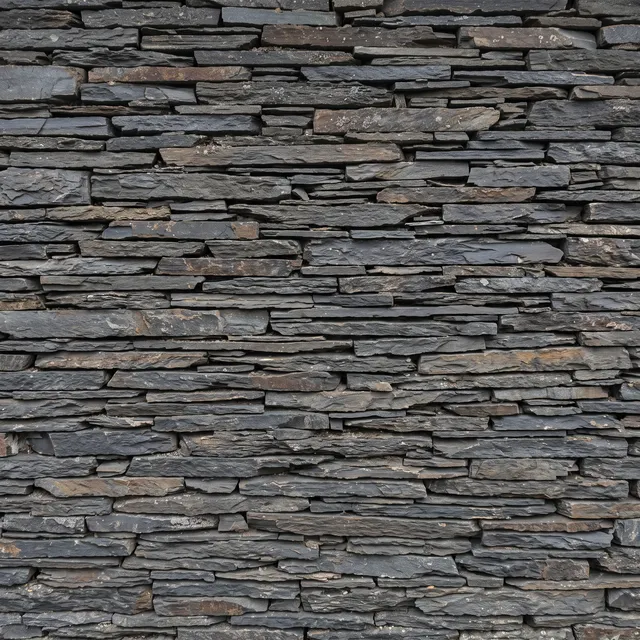
Works well
- Camera straight on, parallel to the surface
- Soft, even light: an overcast day or a shaded wall
- The material fills the whole frame
- Sharp focus and at least 1024 pixels wide
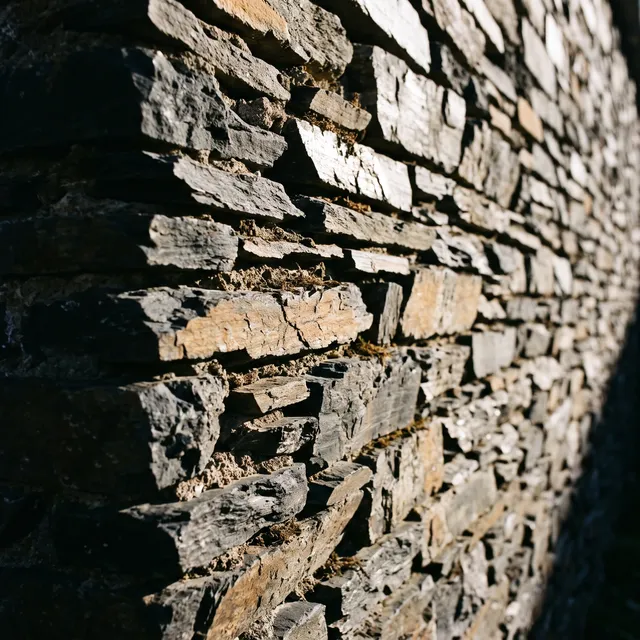
Gives weaker maps
- Shot at an angle, with perspective
- Hard sun with long shadows and glare
- Wet or shiny spots that mirror the light
- Blurry, tiny or heavily compressed images
Height, Roughness and AO Maps from the Same Image
The normal map generator gives you a full PBR set from one photo, all in one ZIP. The height map doubles as a 16-bit displacement map.
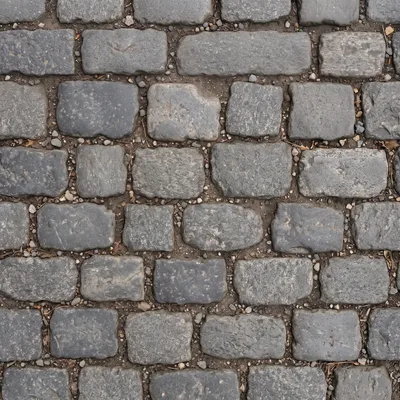
Base color
The photo itself, blended across its edges when you turn on Seamless so it tiles.
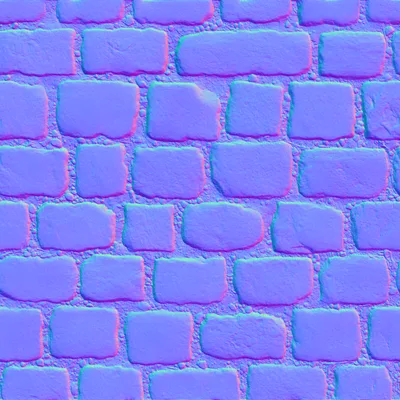
Normal map
Bends the light per pixel so a flat surface shows every stone, crack and groove without extra polygons.
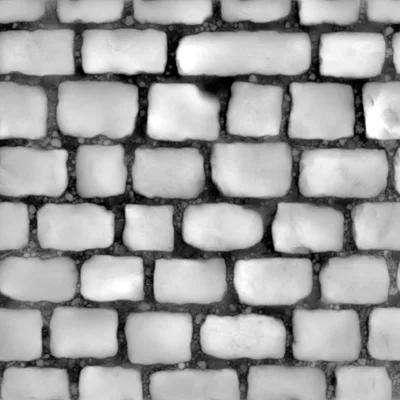
Height map
Grayscale depth, white is high. Saved as a 16-bit PNG, so displacement has no stair steps.
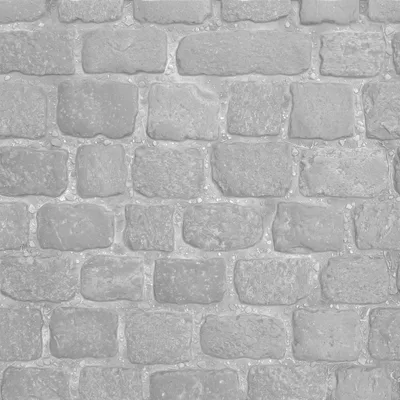
Roughness map
How matte or glossy each spot is. Gaps and dusty spots stay rough, worn tops catch the light.
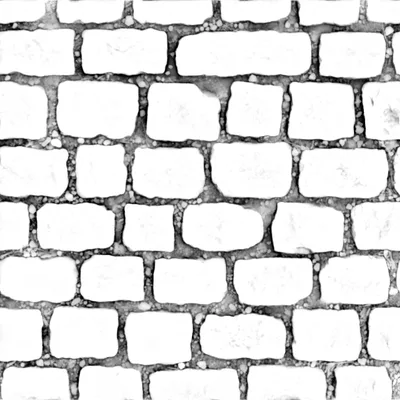
Ambient occlusion
Darkens the gaps where light cannot reach, for depth in real-time scenes.
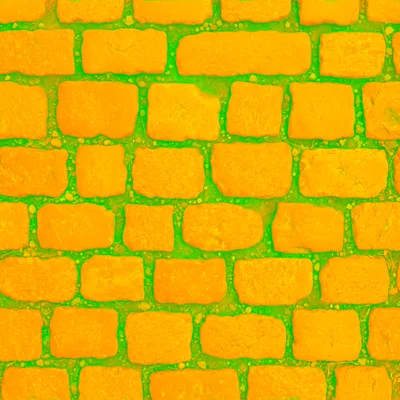
ORM map
AO in red, roughness in green, metallic in blue: one texture for Unreal, Godot and glTF.
Use Your Normal Map in Blender, Unity and Unreal
Every map from the normal map generator drops straight into your engine. Two settings decide whether it looks right: the green channel format and a non-color texture. Here is where they live in each one.
Blender
Add an Image Texture node, set Color Space to Non-Color, connect it to a Normal Map node and that to the Normal input of the Principled BSDF. Blender uses OpenGL. For real depth, feed the height map into a Displacement node.
OpenGL · Non-ColorUnity
Select the PNG and set Texture Type to Normal map, then drop it into the Normal Map slot of a Lit or Standard material and set the strength there. Unity uses OpenGL.
OpenGL · Texture Type: Normal mapUnreal Engine
Download with the DirectX format. Check that the texture uses the Normalmap compression setting and connect it to the Normal pin of your material. If the bumps look inverted, tick Flip Green Channel.
DirectX · Compression: NormalmapGodot
Godot 4 uses OpenGL. In a StandardMaterial3D, enable Normal Map and load the texture, then put the roughness and AO maps in their own slots or use the ORM map with an ORMMaterial3D.
OpenGL · StandardMaterial3D
Free, Private and Ready for Commercial Use
Your images stay on your device
Most normal map online tools send your image to a server. This normal map generator runs in your browser, AI model included. Nothing is uploaded, so client work and unreleased art stay private.
Free, no sign-up
No account, no watermark and no daily limit. Open the page and make as many maps as you need.
Yours for commercial use
Maps made from your own images belong to you. Use them in games, renders, client projects and asset packs.
Normal Map Generator FAQ
Yes. AI photo mode runs DeepBump, an open-source neural network trained on material scans, right in your browser. It predicts the surface shape from a photo, so it tells real bumps from shadows and color changes better than tools that turn brightness into height.
Yes. It is free with no sign-up and no watermark. Everything runs on your own device, so there is no upload and no queue.
They differ only in the green channel. OpenGL is Y+ (green points up), DirectX is Y- (green points down). Blender, Unity, Godot and Maya use OpenGL. Unreal Engine and 3ds Max use DirectX. Switch the format before you download.
The green channel is the wrong way for your engine: switch between OpenGL and DirectX. In image mode, bright areas are raised, so a texture with pale gaps (like light mortar between bricks) comes out inside out. Turn on Invert height or use AI photo mode.
Use the normal map for game engines and real-time work: it stores the exact surface direction and lights more accurately. A bump map is a grayscale height image the renderer turns into shading, handy in offline renderers. The ZIP includes the height map for that.
1K (1024 pixels) is the default and fast on any device. Switch to 2K under Detail for close-up surfaces. Larger photos are scaled to 2048 pixels on the longest side.
Yes. Tap Take photo to shoot a wall, floor or fabric with your camera, or pick an image from your gallery. AI photo mode downloads its 27 MB model the first time, so use Wi-Fi for that.
Yes. Turn on Seamless before you download. The photo is blended across its edges so it tiles, and every map is made from the tiled version, so they all repeat without a seam. Set the 3D preview to 2x or 3x to check.
NormalMap-Online turns a height map into a normal map with a Sobel filter. Here you can start from an ordinary photo: AI photo mode reads the shape, three detail levels balance large and fine bumps, and you get height, roughness, AO and ORM maps with a live 3D preview.
Make Your Normal Map Now
Drop in a photo and get normal, height, roughness and AO maps in seconds. Free, in your browser.
Upload an image